PLACA.AI Help Center

License Plate Recognition, Parking Enforcement, Access Control, and School Pickup Help

PLACA.AI is an AI-powered license plate recognition and vehicle automation platform for parking, gated access, enforcement, valet, and school pickup workflows. Use this knowledge base to set up cameras, manage vehicles and permits, troubleshoot recognition issues, and run daily operations with less manual work.

LPR Camera Setup

Register cameras and devices, validate streams, improve plate reads, and connect capture points to active workflows.

Parking Enforcement

Manage permits, patrol activity, violations, tow status, and Enforcer mobile workflows from one operating system.

HOA & Access Control

Support resident vehicles, approved visitors, gated entries, and property visibility with license plate recognition.

School Pickup Automation

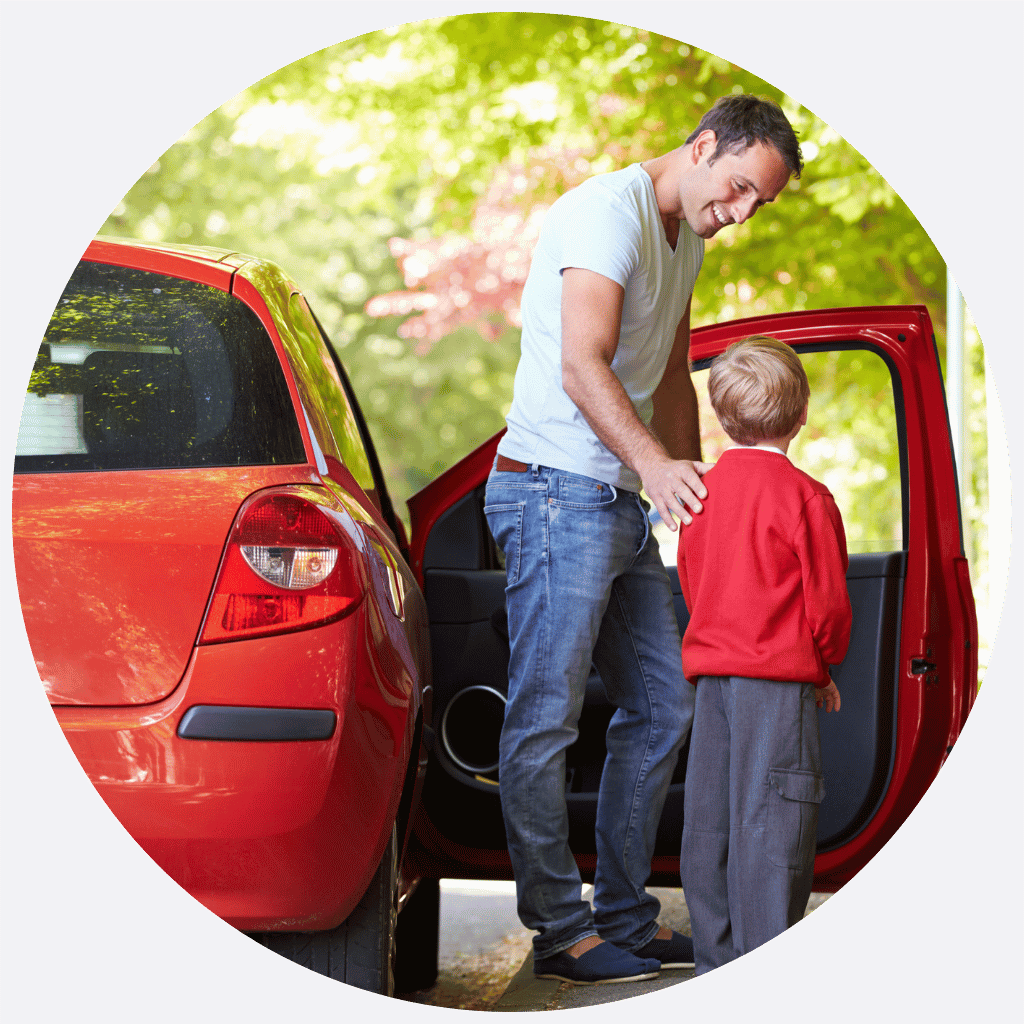
Connect parent vehicles to student records so staff can see arrivals, dismiss safely, and review pickup history.

Frequently Asked Questions (FAQs)

PLACA.AI connects school staff, students, parents, vehicles, and devices in one platform so dismissal can be managed in real time.

Yes. Vehicle records can be linked to camera-based detection for faster and safer pickup workflows.

Yes. Parents or guardians can have more than one vehicle linked to their account, depending on school policy.

Yes. Teachers can view students by status, including waiting, arrived, dismissed, and absent.

Yes. Pickup reports provide a searchable record of departure activity by class and date.

If a parent drives in and the license plate is not recognized by the system:

  • Automatic Check-In Fails: The school’s cameras won’t add the parent to the pickup queue automatically.
  • Notifications Are Not Triggered: School administrators and staff won’t receive the usual “parent arrived” alert.

Common Causes:

  • The license plate is not registered in the parent profile.
  • The license plate is dirty, damaged, or not visible.
  • Technical issues with the camera or system.

For Parents:

If this happens to you, here's what you should do:

  • Manual Check-In: Open the pickup app and look for a “Check-In” button. This lets you alert staff that you’re waiting.
  • Use QR Code (if available): Some schools provide a QR code for backup check-in. Scan it using your app or at a kiosk.
  • Contact School Staff: If you can’t check in, use the Help or Contact feature in the app, or speak directly to a staff member at the pickup zone.

If manual or QR check-in still fails, notify staff immediately. They will assist you and ensure your child is released safely.

How to avoid this from happening:

  • Make sure your vehicle and license plate are correctly registered in your app profile.
  • Keep your license plate clean and unobstructed.
  • Update your profile if you use a different vehicle.